

Conversion settings tell WEMASY what counts as a goal on your website, such as reaching a thank you page or clicking a button. With Recalculate Conversions you apply your goals to visits that already happened, so a goal you add today also counts last month's visits.
Open Conversion Setting
- Open Analytics & Insights.
- Open the three dots menu at the end of the menu.
- Select Conversion Setting.
The Conversion Settings page lists your goals with their Label, Event, Values and match options.
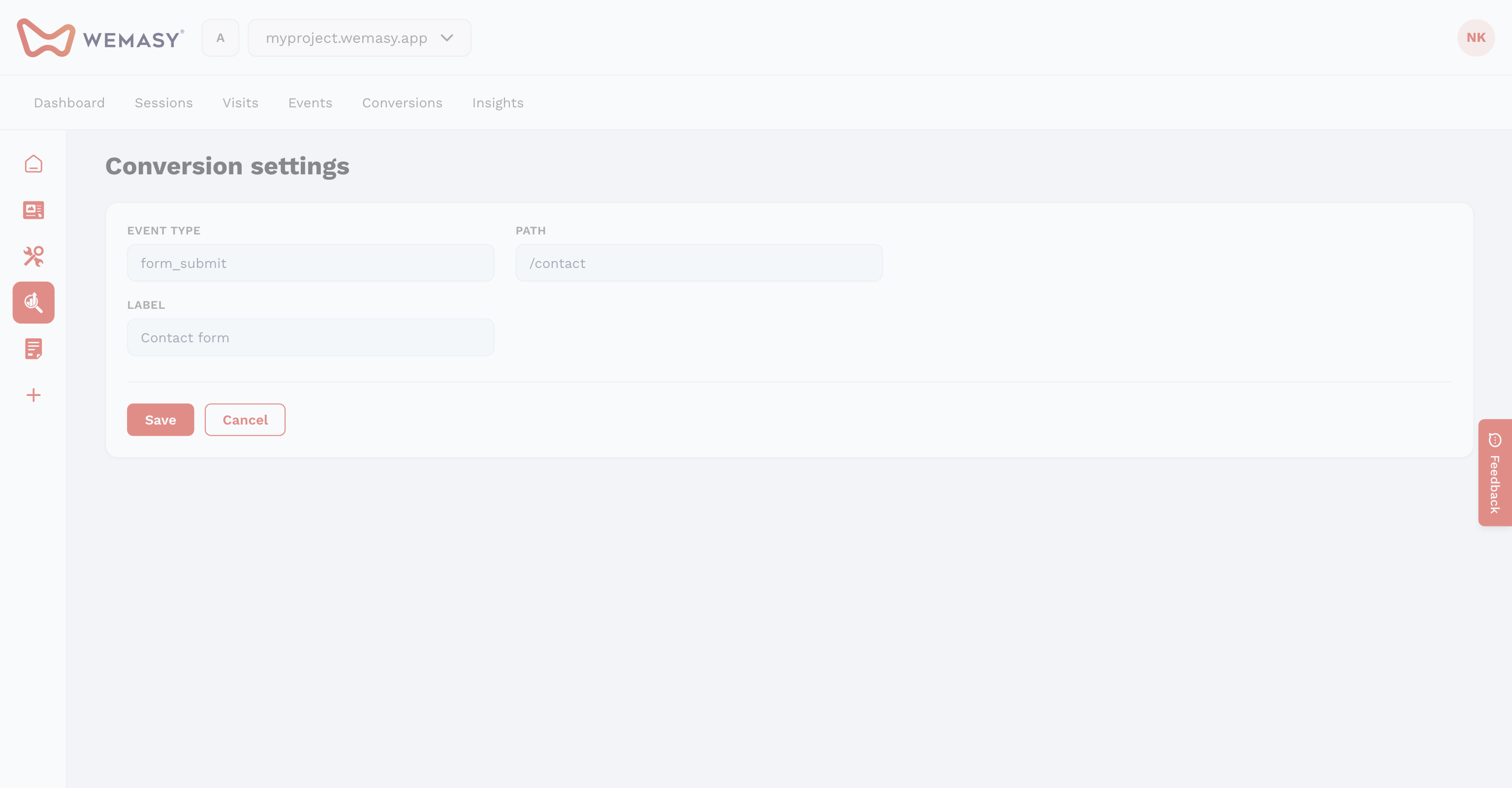
Add a goal
- Click Add.
- Enter a Label, for example "Contact form sent".
- Choose an Event: Current URL, Click or Html Tag.
- Fill in the values for that event type (see below).
- Turn on Unique Per Session if the goal should count only once per visit.
- Click Save.
The three event types
Current URL
The goal counts when a visitor opens a page. Under Values (Enter path without domain name), type the path and press Enter, for example /thank-you. You can add more than one path. You can use patterns:
/thank-youmatches only that page. A trailing slash makes no difference./blog/*/commentsmatches any single segment in place of the*./products/:idmatches any value in place of:id./support/(chat|faq)matches one of the listed options./pricing?plan=promatches a page with that query parameter. Other parameters are allowed.
Turn on Exact Match only for a plain path without pattern characters. With *, :, ? or brackets, leave it off.
Click
The goal counts when a visitor clicks something. Under Values (Optional), enter text from the button or link, for example "Call us". The match ignores upper and lower case. Leave it empty to count any click.
Html Tag
The goal counts when a visitor clicks a specific type of element. Pick the HTML Tag (DIV, P, SPAN, A or BUTTON), then enter text the element contains under Values.
Edit or delete a goal
In the goal list, click Edit to change a goal or Delete to remove it. Changes apply to new visits. Recalculate to apply them to earlier visits.
Recalculate conversions
- Click Conversions in the menu.
- Click Recalculate Conversions.
- Select a Date Range.
- Choose whether to Delete previous conversions. This is on by default, so old matches from changed goals are removed.
- Choose whether to Delete Manuel conversions, the conversions you marked by hand. This is off by default.
- Click Confirm.
When it is done, you see Conversions recalculated. You can also start a recalculation from Project Setting on the Analytics tab.
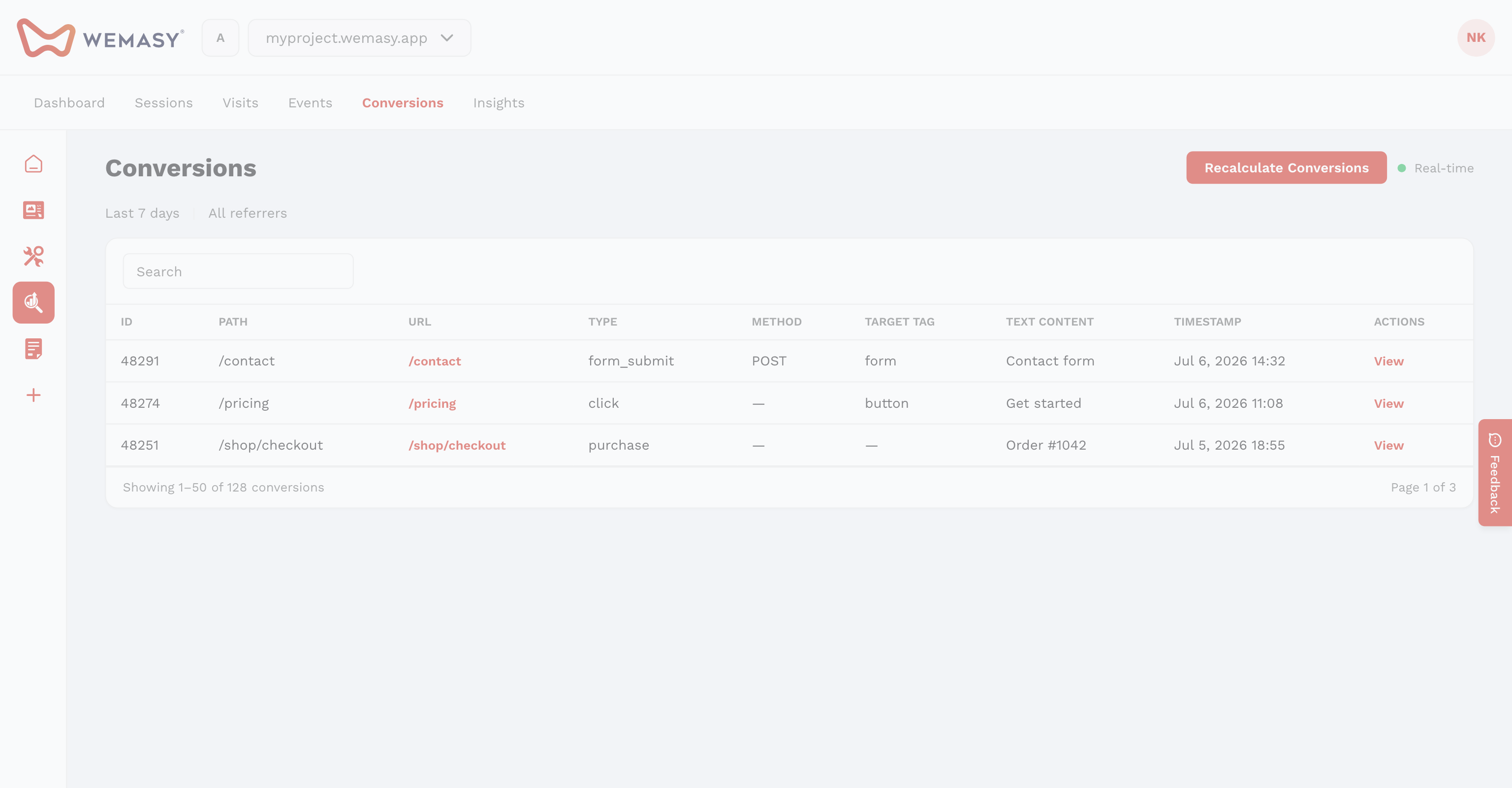
Tip: test a new goal on your own website first. Complete the action, then look for it on the Conversions page. Read how conversions show up in your reports in Conversions and goals, and use your goals as steps in a funnel analysis.
Frequently asked questions
My URL goal does not match. What should I check?
Enter the path without the domain. Turn off Exact Match when you use a pattern. For * and :name patterns the number of segments must be the same, so /blog/* does not match /blog/2026/post.
What does Unique Per Session do?
With Unique Per Session on, a goal counts once per visit, even if the visitor reaches it several times. Leave it off when every repeat should count, such as each item added to a cart.
Does recalculating change my visits?
No. It only rebuilds the conversions for the date range from the stored visit data. Your sessions and recordings stay the same.