

A product feed is a link to a file with your products that advertising platforms such as Google Shopping read. WEMASY keeps the file up to date, so you do not export a new list each time your products change.
Where to find it
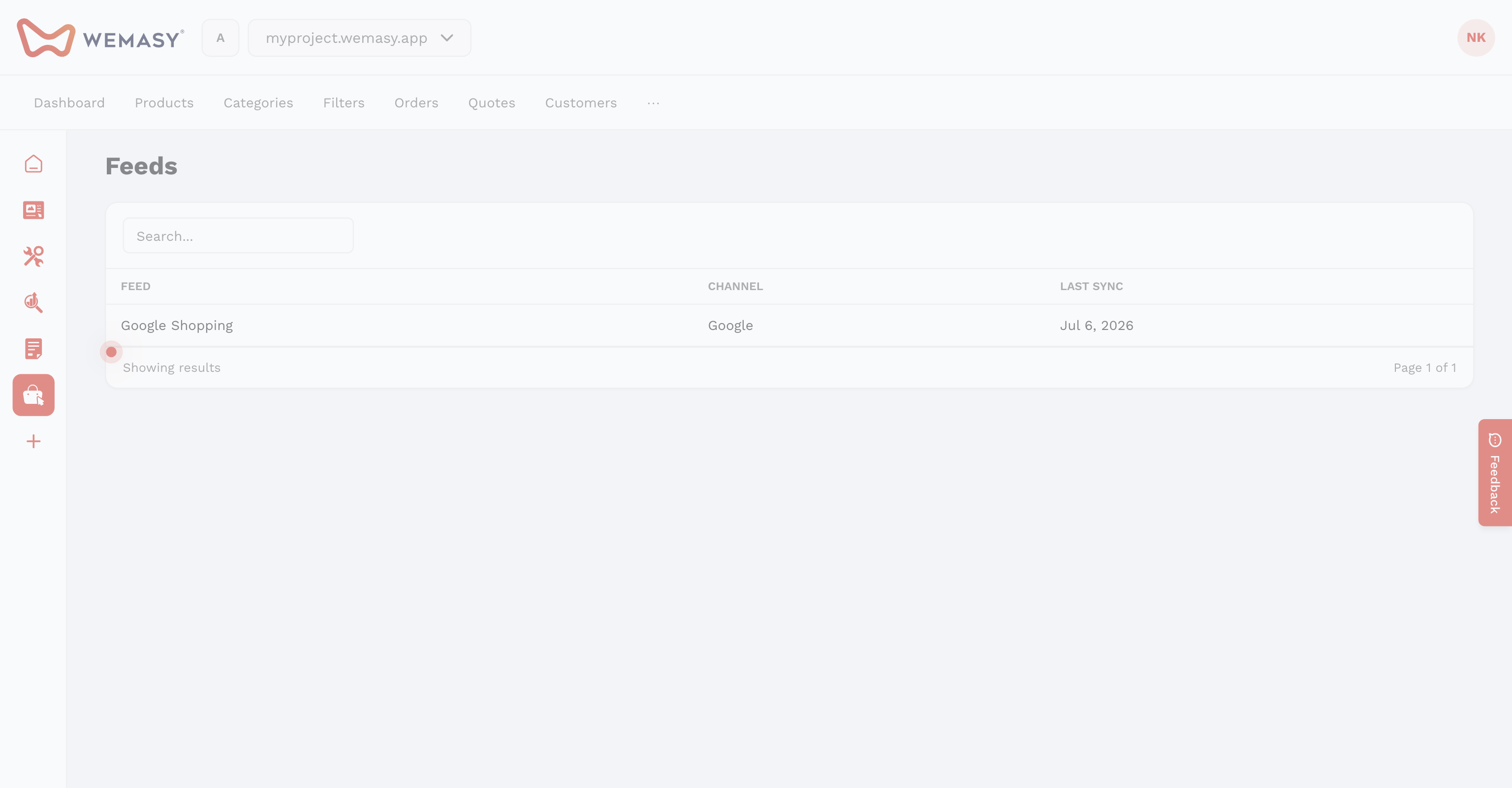
Open Webshop, open the more menu (three dots), and click Feeds.
Create a feed
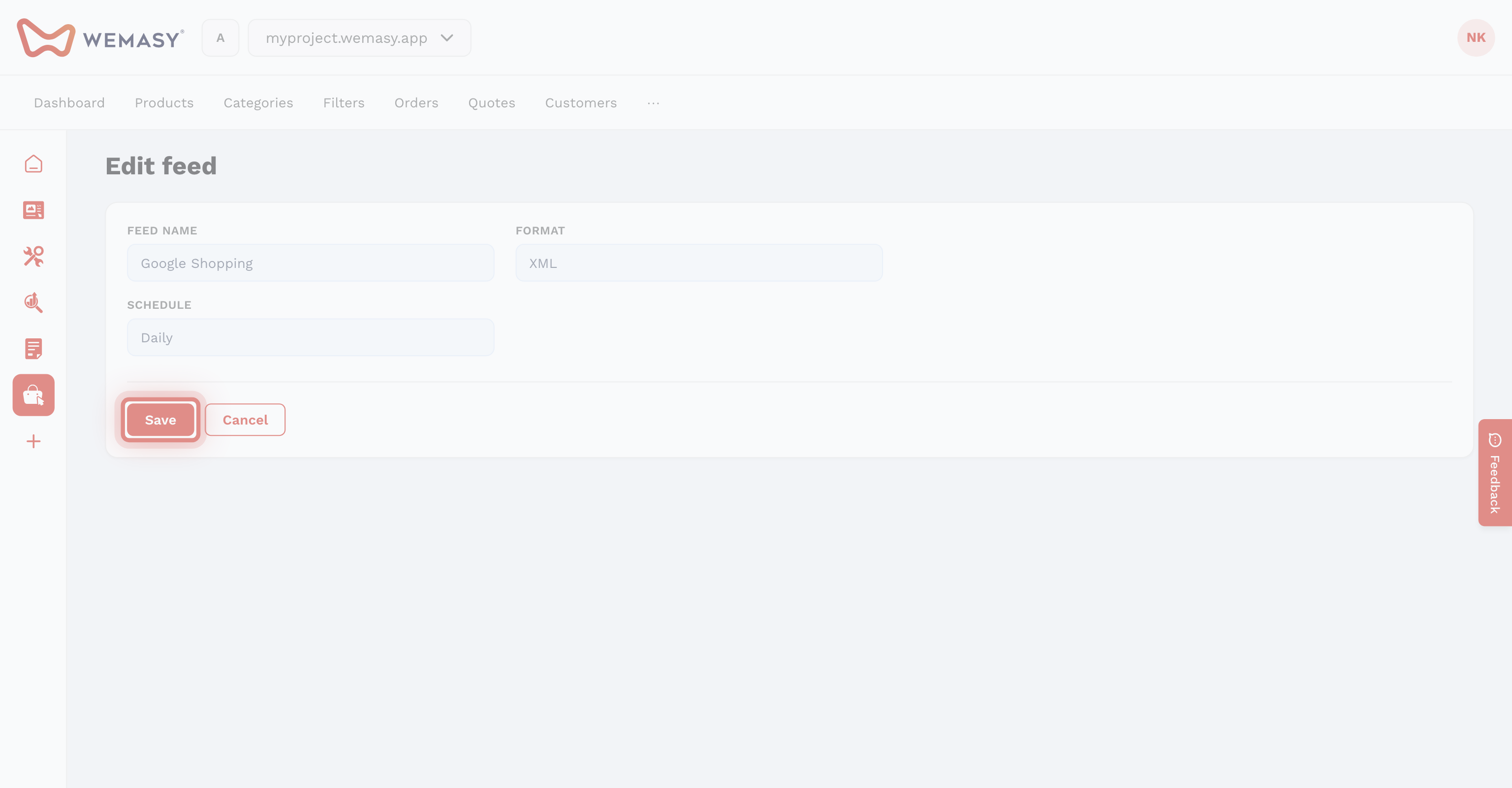
- Click Create Feed.
- Enter a Label, for example Google Shopping NL.
- Click Add Data.
- Enter a Data Label for this group of products.
- Add a filter on category or product.
- Choose Equals to include, or Not Equals to leave out.
- Pick the categories or products.
- Click Save.
A feed needs at least one data section, and each section needs at least one filter with a value.
Use the feed URL
- Find the feed in the list.
- Open the actions menu.
- Click Copy URL.
- Paste the URL in your advertising platform as a scheduled feed.
The URL returns an XML file in the Google Shopping format, built from your published products.
Keep a product out of every feed
- Open the product.
- Open the Advanced tab.
- Tick Disable feed listing.
- Click Update.
Give your products a clear title, a main image, a price, and an EAN where you have one, because ad platforms check these fields. See Adding products.
Check your feed
Open the feed URL in your browser after you create it. You see the products in the feed with their titles, prices, and links. If a product is missing, check that it is active, that it matches the filters of the feed, and that Disable feed listing is off.
Tip: Make separate feeds per product group, so you can run separate campaigns. To measure sales from your ads, see Advanced ecommerce tracking with GA4.
Frequently asked questions
How often does the feed update?
The feed URL always reads your published products, so changes show after you publish your site.
Can I edit or delete a feed?
Yes. Use Edit or Delete in the actions menu of the feed.