

You log in to WEMASY with your email address, and WEMASY sends your invoices and security codes there. You can change it on the Change Email tab of My account. To protect your account, WEMASY asks you to confirm the change with codes sent by email.
Before you start
- Make sure you can open both your current inbox and the new inbox. WEMASY sends a code to each.
- The new address cannot belong to another WEMASY account.
- Keep this tab open while you get the codes. They expire after 10 minutes.
How to change your email address
- Click the user icon in the top right corner of the dashboard.
- Click My account.
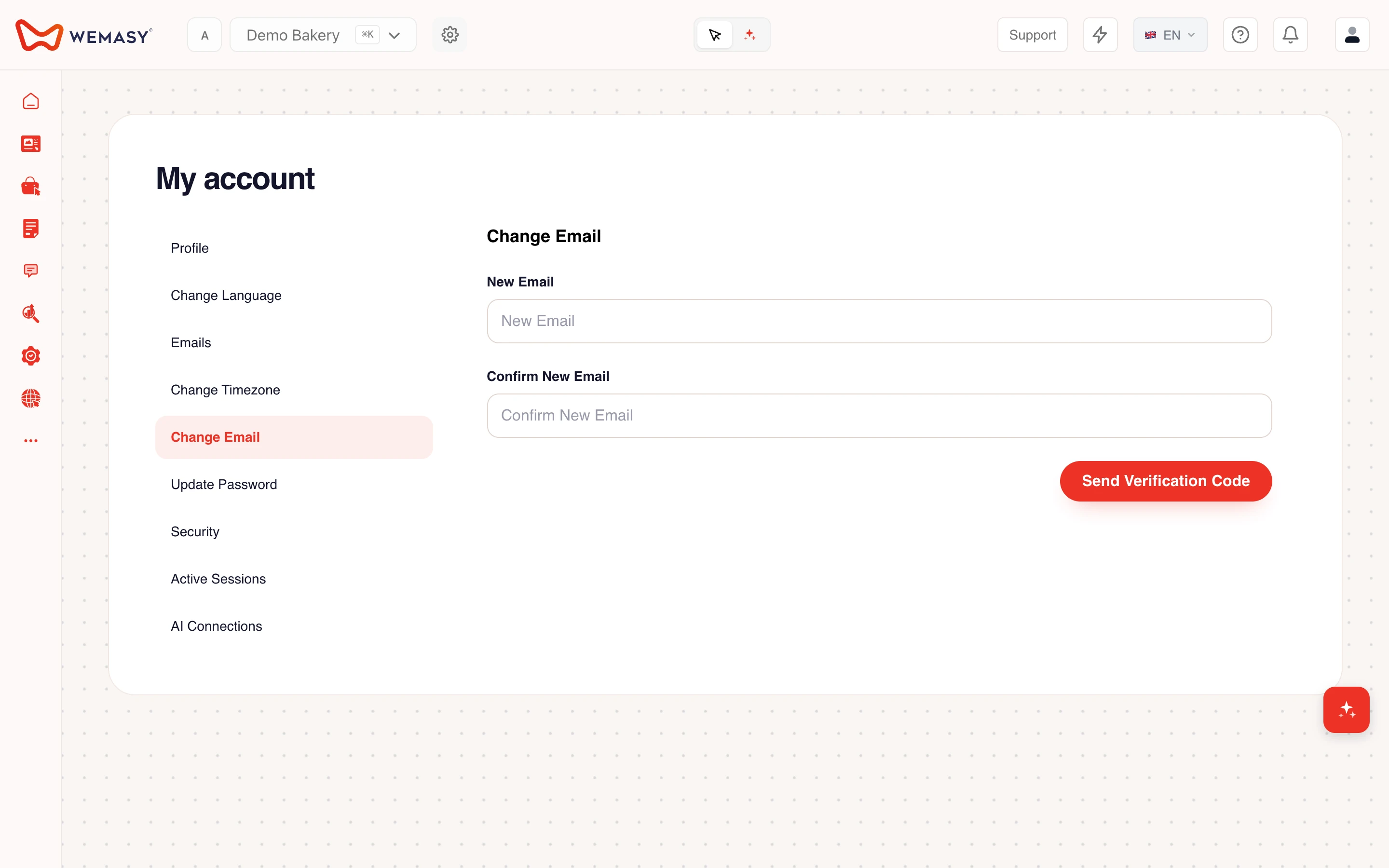
- Click Change Email in the menu on the left.
- Enter your new address in New Email.
- Enter the same address in Confirm New Email.
- Click Send Verification Code.
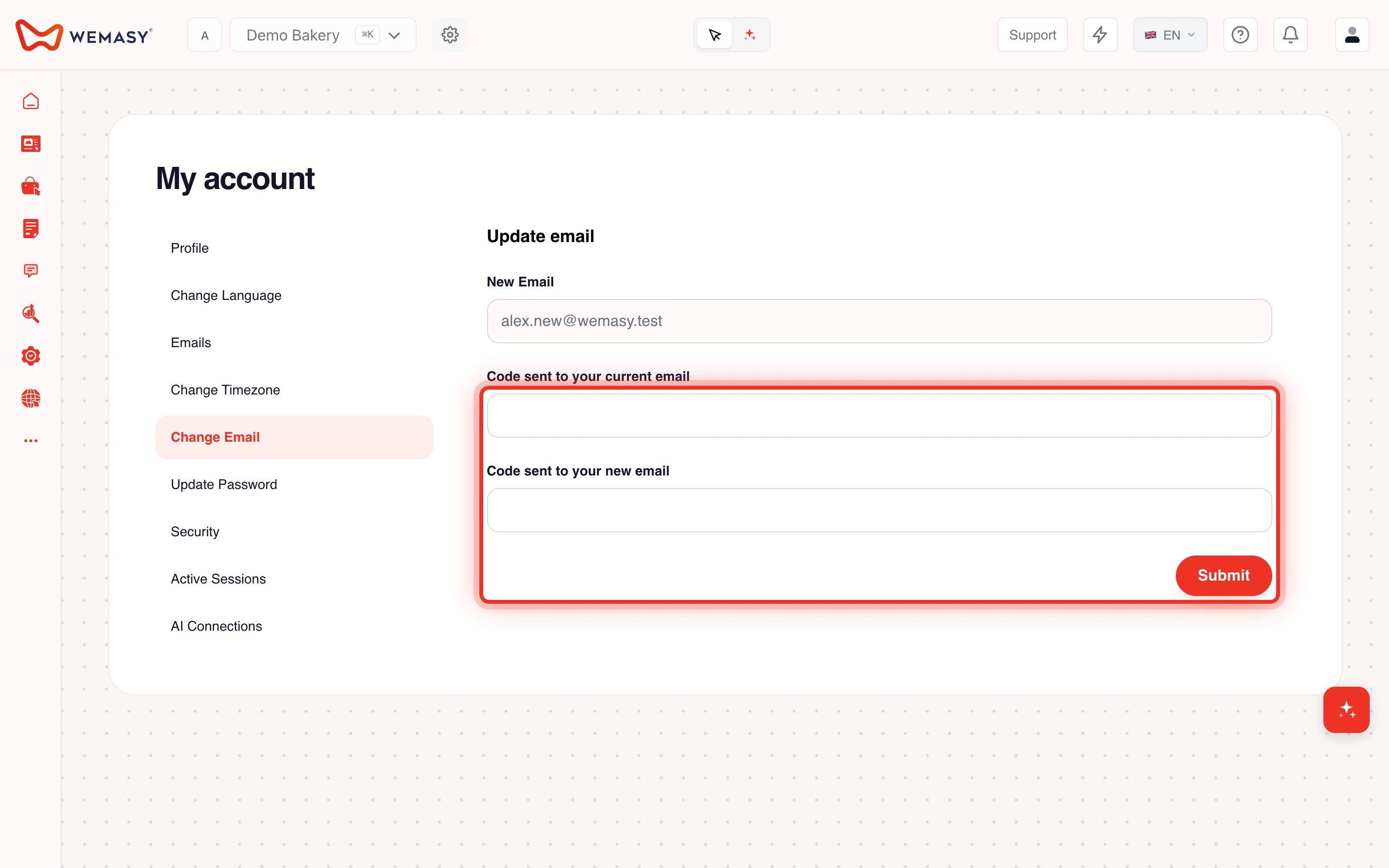
The form changes and shows two code fields.
- Open your current inbox and copy the code from WEMASY.
- Enter it in Code sent to your current email.
- Open your new inbox and copy the code from WEMASY.
- Enter it in Code sent to your new email.
- Click Submit.
WEMASY saves your new address and shows a confirmation message. Your new address is also verified right away.
After the change
- Log in with your new email address from now on. Your password stays the same.
- WEMASY sends account emails, security codes and invoices to the new address.
- Collaborators on your projects see the new address.
If something goes wrong
- The code expired: codes work for 10 minutes. Start again with Send Verification Code.
- Too many wrong codes: after five wrong tries the codes stop working. Request new ones.
- The address is already in use: another account uses it, or someone else is changing their email to it at this moment. Use a different address.
- No code arrives: check your spam folder and the spelling of the new address.
Lost access to your old inbox? WEMASY cannot send you the first code then. Create a support ticket from your account so the team can help.
Tip: If you only want invoices to go to another address, you do not need to change your login address. Enter that address under Billing details on the Profile tab. See editing your profile.
Frequently asked questions
Why do I need two codes?
The first code proves that you own the current address. The second proves that you own the new one. Together they stop anyone from moving your account to an address you do not control.
Does changing my email log me out?
No. You stay logged in. Use the new address the next time you log in. See the article on logging in.