

Invite collaborators when other people help you with a project, such as a colleague, a designer, or your agency. Each collaborator logs in with their own WEMASY account and sees only the parts of the project you give them access to.
How to invite a collaborator
- Open the project you want to share.
- Click your avatar or initials in the top right corner.
- Select Collaborators.
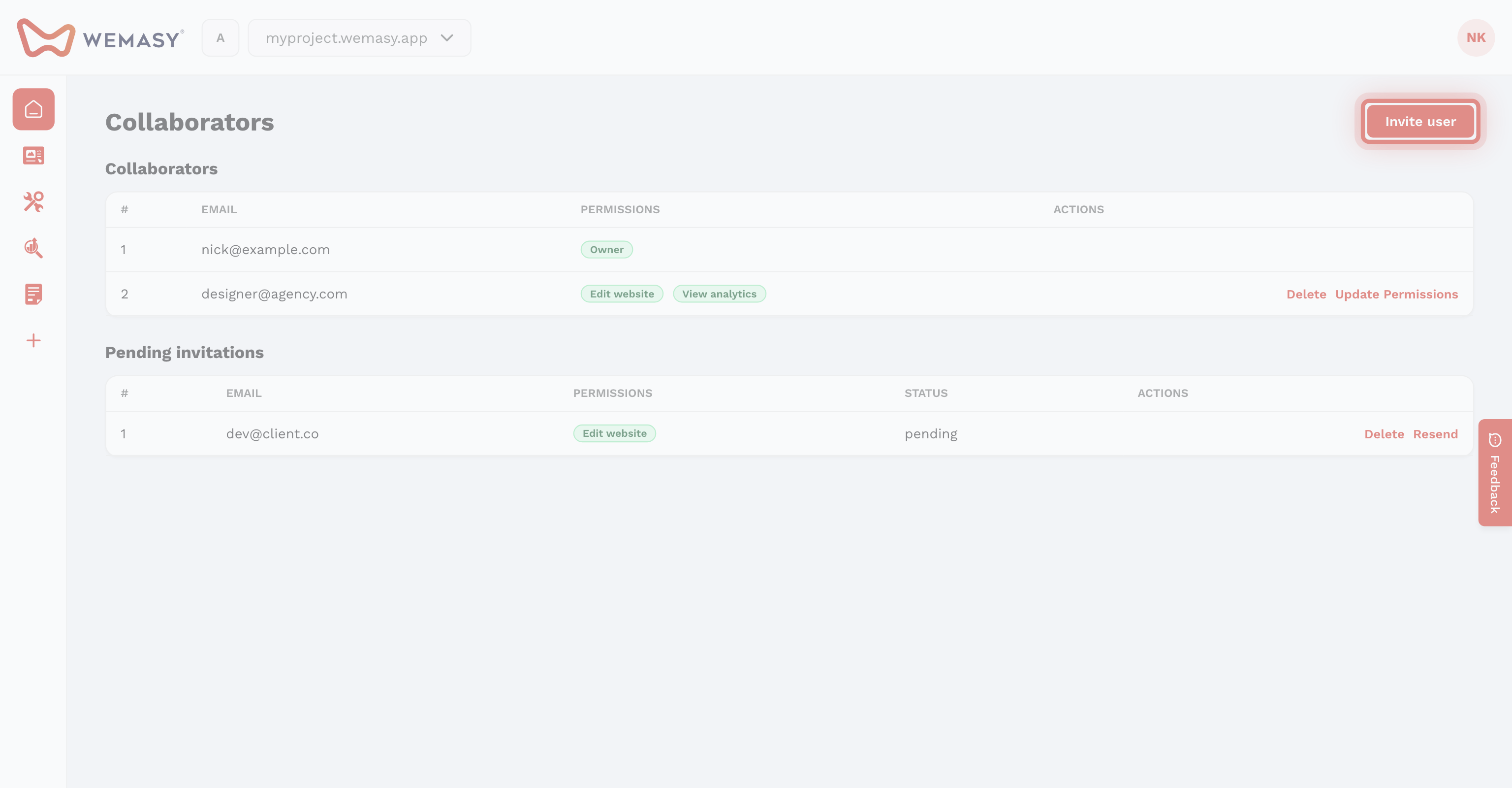
- Click Invite user.
- Enter the email address of the person in Email.
- Under Select user permissions, tick what this person may use.
- Click Send Invitation.
The person gets an email with a link. If they already have a WEMASY account, they join the project with that account. If not, they set a password on the invitation page and their account is made for them. Until they accept, the invitation shows under Pending invitations.
Choosing permissions
The permission list has three kinds of rights:
- Full rights (admin): everything in the project, including the project settings. Use it for people you fully trust.
- Team management: the person may invite people, resend or delete invitations, change rights, and remove collaborators.
- One right per product: for example the Website Builder, Forms, or Analytics & Insights. The person only sees the products you tick.
A collaborator with only the Website right can edit the website and change its title, logo, and favicon, but cannot change the domain, mail settings, cookie banner, or language. You can only give rights that you have yourself, so a collaborator without full rights cannot hand out full rights or team management.
Pending invitations
In the Pending invitations table you can:
- Click Resend to send the invitation email again.
- Click Delete to cancel the invitation.
An invitation link can expire. If the person sees Expired, resend the invitation.
Before you can invite
Verify your email address first: accounts with an unverified email cannot invite people. You cannot invite someone who is already a collaborator on the project.
To change rights later or remove someone, see Managing collaborators. To hand the whole project to someone, they first need to be a collaborator. See Transferring project ownership.
Tip: Start with the products a person needs. You can add more rights at any time.