

If your webshop has many products, you do not have to add them one by one. The WEMASY importer brings them in from a file or a link in one go. You line up the columns yourself, check the result, and can update products you already have. If something is not right, you can undo the import. This article shows how it works.
What the importer can do
- Bring products in from a file or a link. Use a file with your products, or a link to one.
- Line up the columns yourself. You choose which column of your file is the name, the price, the description and so on, so your file does not have to follow a fixed layout.
- Check before you import. A table shows which rows are new and which fail, so you can fix them first.
- Update products you already have. Products are recognised by name or by SKU or barcode, so you can change existing products instead of adding duplicates.
- Undo an import. If the result is not what you wanted, you can undo it.
- Run again from a link. For a feed or a price list that changes, the importer can run on a schedule from a link.
Import your products step by step
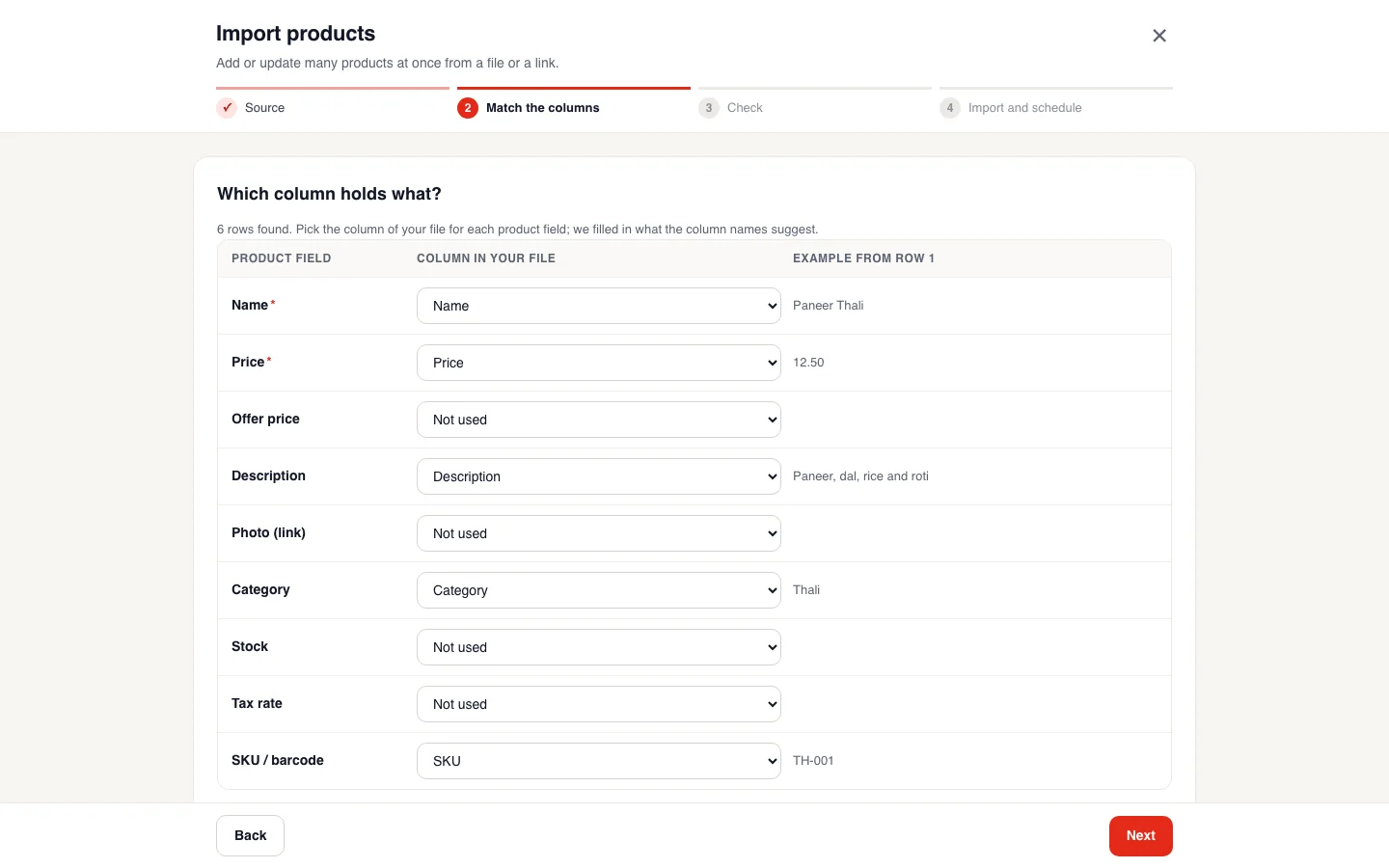
The importer has four screens: Source, Match the columns, Check, and Import and schedule.
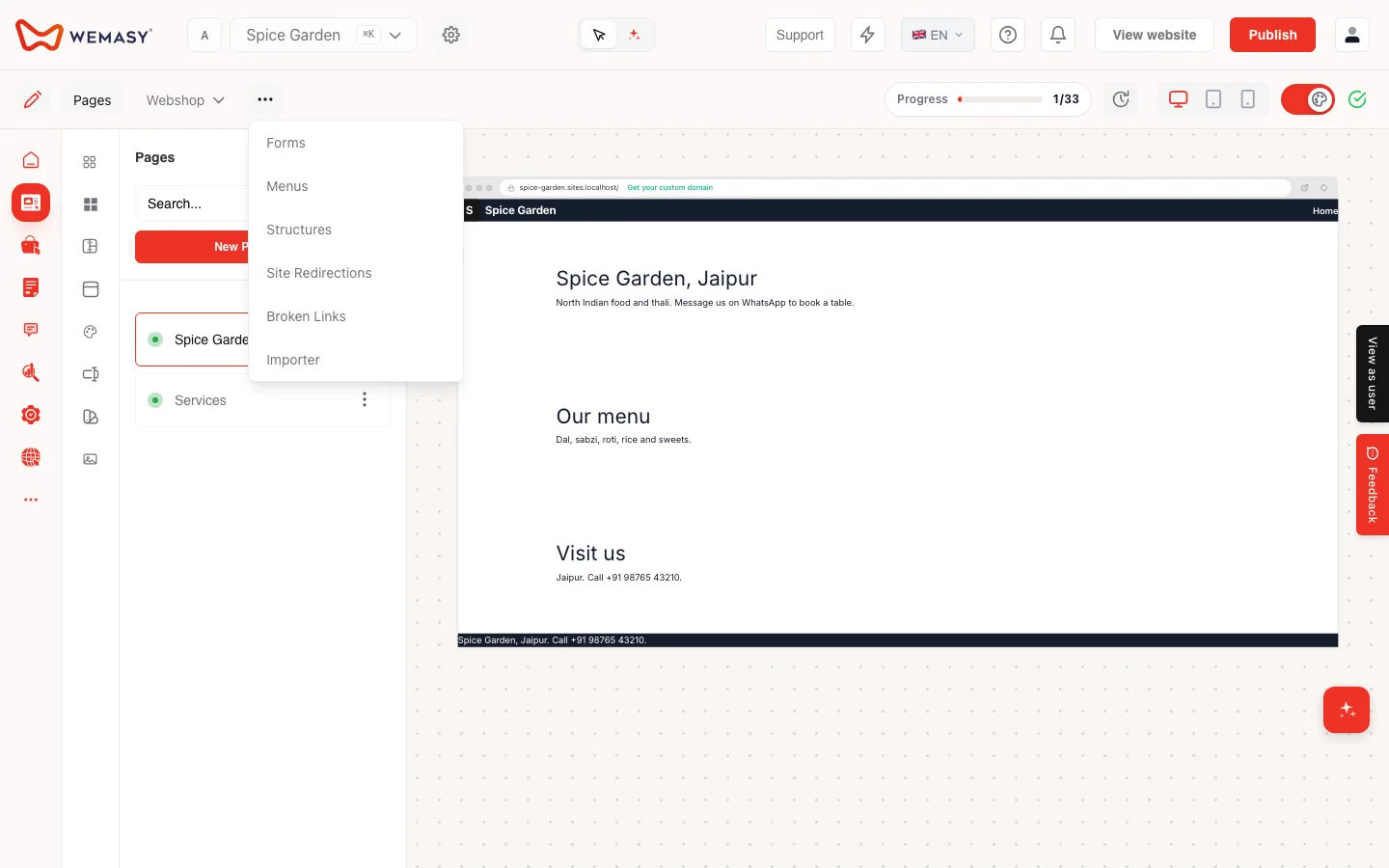
Open the importer. In your Webshop, go to Products and choose Import. You also find Importer in the builder's "..." menu, next to Forms, Menus, Structures, Site Redirections and Broken Links.
- Source. Choose your file, or paste the link to it.
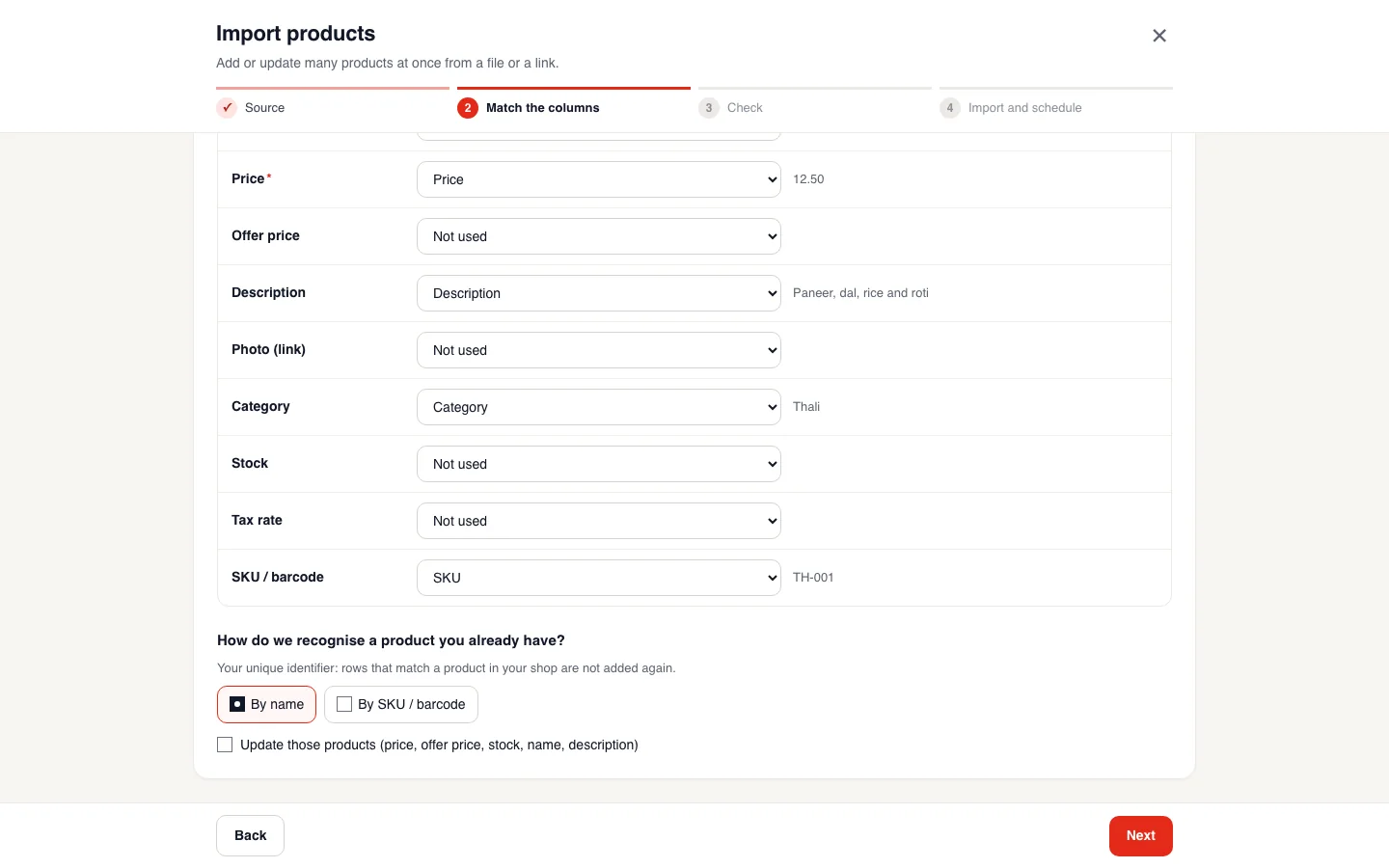
- Match the columns. Pick which column holds the name, the price, the description and the other details. Then choose how WEMASY recognises a product you already have: by name, or by SKU or barcode. Tick "Update those products" if you want to change the price, offer price, stock, name and description of products you already have, instead of adding them twice.
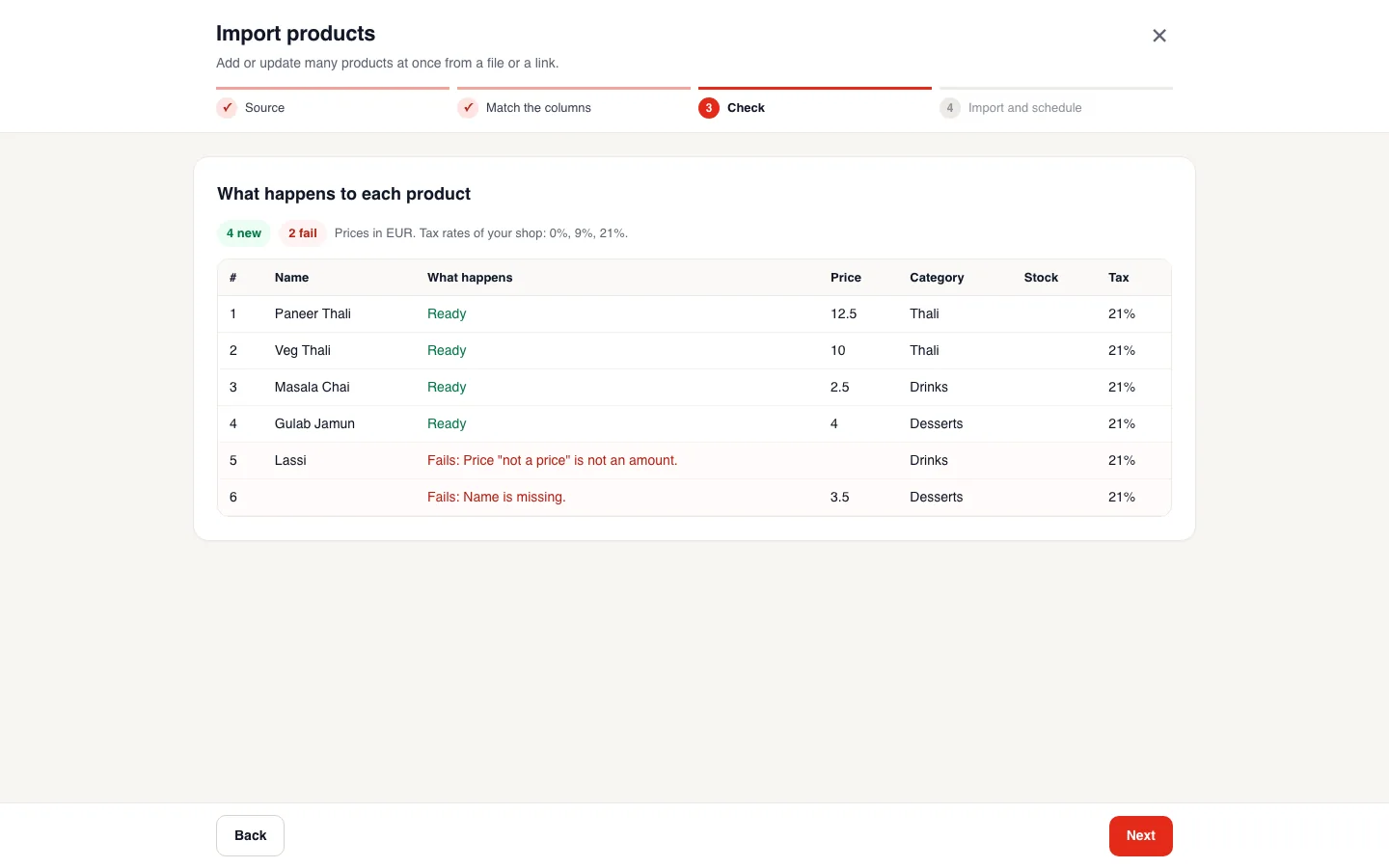
- Check. A table shows which rows are new and which fail, with the reason, for example a price that is not an amount. Correct the failing rows in your file and try again.
- Import and schedule. Start the import and look at the result in your webshop. If you use a link, you can also schedule the import to run again.
Update instead of adding twice
If you import the same products again, for example with new prices, tick "Update those products" in step 2 and choose how to recognise them: by name, or by SKU or barcode. The importer then changes the product you already have and does not create a second one. This keeps your webshop free of duplicates.
If something went wrong
Undo the import, correct your file and import again. Because the importer checks the rows first, most problems show up before anything is added.
The AI chat and the importer
You can also ask the AI chat to add products. The chat adds products, but it does not update the ones you already have. For updating many products, use the importer. See What the AI chat can do.
Frequently asked questions
Can I import products from a link instead of a file?
Yes. The importer can read your products from a link, and it can run again from that link on a schedule, for example for a feed or a price list.
Do my columns have to be in a special order?
No. You line up the columns yourself.
Will it create duplicates of products I already have?
Not if you tick "Update those products". Products are recognised by name or by SKU or barcode.
Can I undo an import?
Yes. The importer has an undo.
Can the AI chat update my products in bulk?
The AI chat adds products. To update many existing products at once, use the importer.